
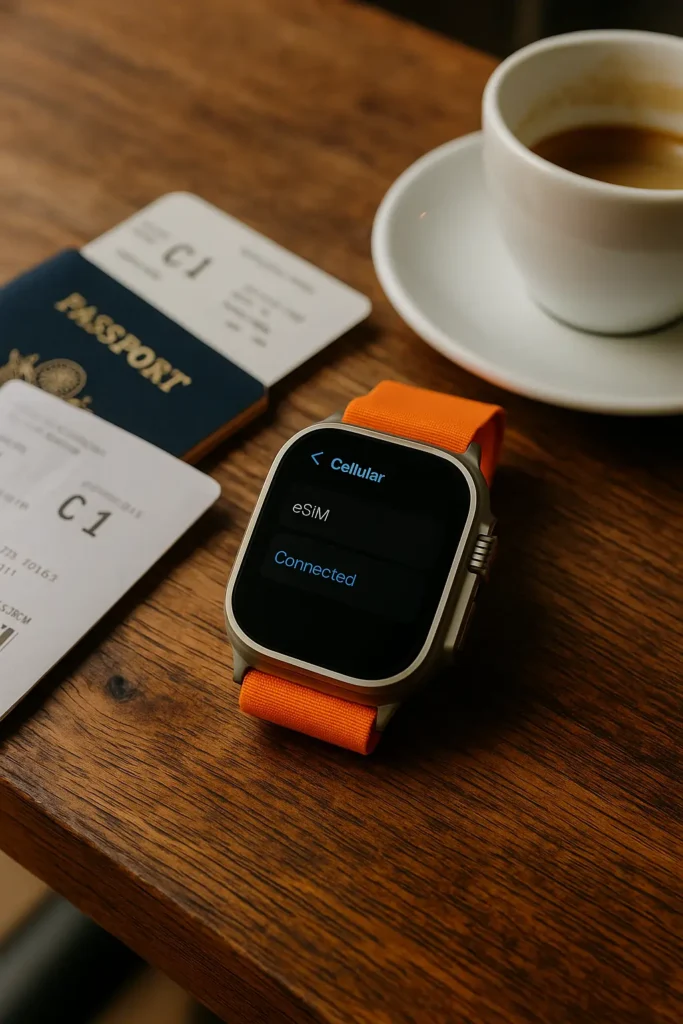
For travelers who want to pack light and stay connected on the go, a smartwatch with eSIM is a total game-changer. Whether you’re heading off on a solo hike, exploring new cities without your phone, or want a backup way to stay online in case of emergencies, an Apple Watch or Galaxy Watch with eSIM support can keep you connected—without relying on Wi-Fi or tethering.
In this guide, we’ll walk you through:
- Which watches support eSIM
- How to activate eSIM on Apple and Samsung watches
- Travel-friendly use cases for smartwatches
- Helpful tips, provider info, and what to avoid
Why Use eSIM on a Smartwatch for Travel?
If you’re exploring new destinations, a smartwatch with eSIM lets you:
- Leave your phone in the hotel but still get calls, texts, and navigation
- Use emergency calling or location tracking in remote areas
- Check flight updates or rideshare pickups on your wrist
- Pay for transport or meals using mobile wallet integrations
Smartwatches are lightweight, always on-hand, and discreet—perfect for travelers who want function without fuss.
Which Smartwatches Support eSIM?
Apple Watches with eSIM Support:
| Model | eSIM Supported? | Launch Year |
| Apple Watch Series 3 (Cellular) | Yes | 2017 |
| Apple Watch Series 4–9 | Yes (Cellular models only) | 2018–2023 |
| Apple Watch SE (Cellular) | Yes | 2020+ |
| Apple Watch Ultra / Ultra 2 | Yes | 2022–2023 |
Note: Only GPS + Cellular models support eSIM. Wi-Fi/GPS-only versions do not.
Samsung Galaxy Watches with eSIM Support:
| Model | eSIM Supported? | Notes |
| Galaxy Watch (1st Gen LTE) | Yes | Not widely supported now |
| Galaxy Watch Active2 LTE | Yes | Limited eSIM flexibility |
| Galaxy Watch 3 LTE | Yes | Improved coverage |
| Galaxy Watch 4, 5, 6 LTE | Yes | Broad eSIM support |
Pro Tip: Always double-check if the version you’re buying is LTE/cellular—as eSIM capability is hardware-dependent.
How to Activate eSIM on Apple Watch (Step-by-Step)
Before you start:
- Make sure your iPhone supports eSIM and is paired with your watch
- Have a supported carrier plan or travel eSIM ready
Steps:
- Open the Watch app on your iPhone
- Go to Cellular > Set Up Cellular
- If using your main carrier, follow their prompts to add your Apple Watch
- For travel eSIM, use providers like Airalo or Ubigi that support Apple Watch
- Scan the QR code or manually enter the plan details
- Your Apple Watch will connect to the new network once activated
Your watch can now work independently of your iPhone for calls, maps, and more—even in another country.
How to Activate eSIM on Galaxy Watch (Step-by-Step)
Samsung setup may vary slightly based on region or carrier.
Steps:
- Pair your Galaxy Watch with your phone using the Galaxy Wearable app
- Go to Mobile plans > Add mobile plan
- If prompted, scan a QR code from your eSIM provider or input manually
- Confirm the installation and wait for activation
- Once successful, your watch will show signal and allow independent use
Galaxy Watches work well with services like Truphone, Ubigi, or Deutsche Telekom for eSIM abroad.
Best Travel Use Cases for Smartwatch with eSIM
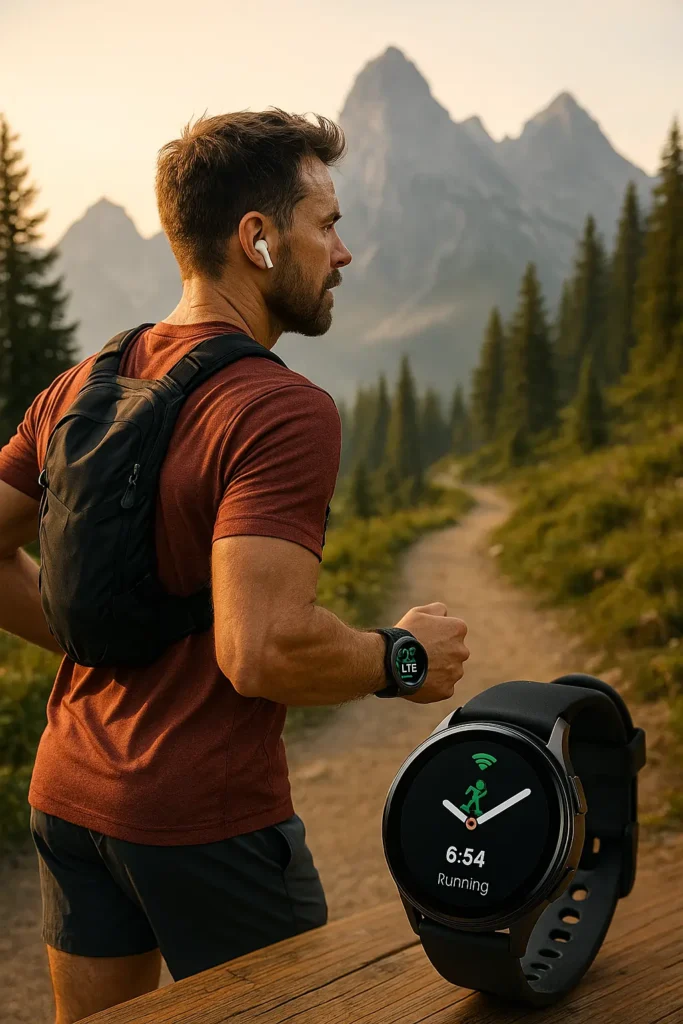
1. Emergency Calling in Remote Areas
Lost on a hike? Fell off-grid while exploring? Your watch’s eSIM keeps you reachable even if your phone’s battery dies.
2. Fitness Tracking While Offline
Track steps, distance, and heart rate with full GPS mapping—even without Wi-Fi or a tethered phone.
3. Boarding, Tickets, and Payments
Access boarding passes, metro QR codes, or Apple Pay/Samsung Pay on your watch—no phone or paper needed.
4. Language & Translation on the Go
Some watches now support Google Translate or Siri shortcuts with network access—very handy when asking for directions.
Tips for Using eSIM Smartwatches While Traveling
- Download offline maps for your area in case mobile signal drops
- Turn on Low Power Mode when using GPS extensively
- Check if your eSIM plan supports roaming or multi-country use
- Be aware of battery drain when using LTE continuously
- Use dual eSIM setups if your phone and watch need different networks
Final Thought
Having eSIM on your Apple Watch or Galaxy Watch isn’t just tech luxury—it’s peace of mind. Whether you’re jogging in a foreign city, stuck at an airport gate, or just want a hands-free way to stay online, your smartwatch becomes a travel essential.
If you already use eSIM on your phone, adding it to your watch is the next smart step. And if you’re new to travel eSIMs, this could be your lightest, simplest way to stay connected worldwide.
FAQs
Q. Can I use travel eSIMs on Apple or Galaxy Watches?
Yes, as long as your watch is the cellular (LTE) model, not GPS-only. Providers like Ubigi, Truphone, and Airalo offer travel eSIMs compatible with many smartwatches. Always check if your destination is supported.
Q. Will my smartwatch work independently while traveling?
Yes. Once your eSIM is activated, your Apple or Galaxy Watch can make calls, receive texts, use navigation, and access the internet without needing your phone nearby—ideal for lightweight travel.
Q. Do I need a physical SIM or local number to activate the eSIM on my watch?
Not necessarily. Many travel eSIMs are data-only. You can still use apps like WhatsApp, FaceTime, Telegram, and Google Maps without a local number.
Q. How is eSIM activation different on Apple vs Galaxy Watches?
Apple Watch setup uses the Watch app on iPhone, while Galaxy Watch requires the Galaxy Wearable app on Android. The process is simple but varies slightly by carrier and device model.
Q. Will using LTE or eSIM drain my smartwatch battery faster?
Yes, using mobile data continuously will reduce battery life faster than Wi-Fi or Bluetooth. Enable Low Power Mode or turn off LTE when not in use to extend battery life during long travel days.








Leave a Reply