
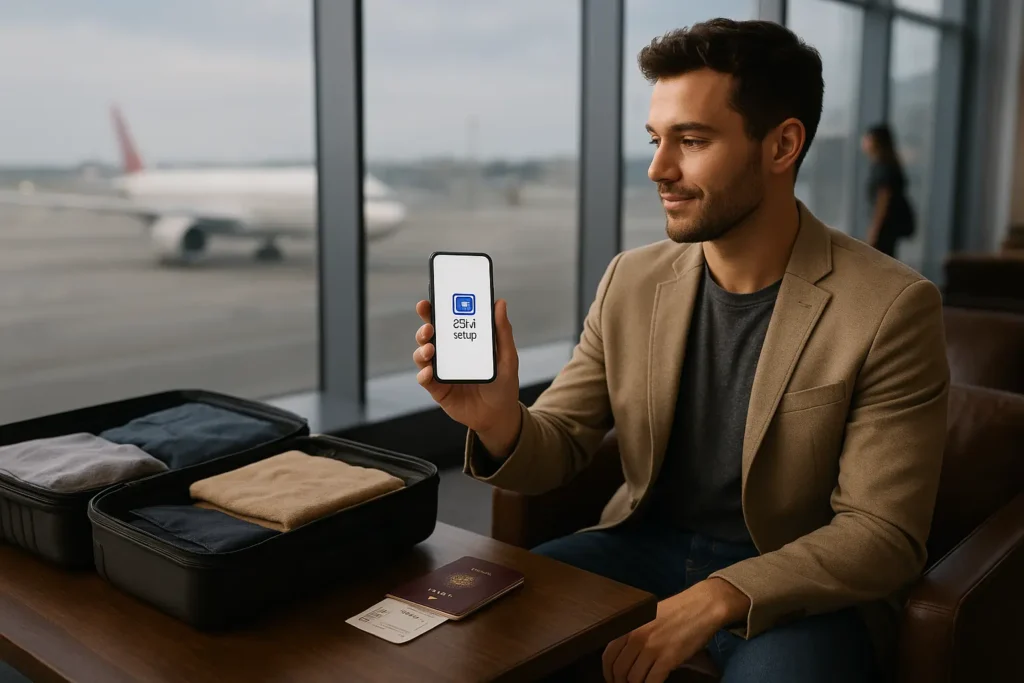
Traveling abroad can be as thrilling as it is complex—especially when staying connected. Setting up an eSIM yourself is fast becoming a favorite alternative to swapping physical SIMs, but navigating carrier-specific instructions can feel daunting. In this post, we’ll walk U.S. travelers through a clear, step-by-step process for setting up eSIM on AT&T, T-Mobile, and Verizon. You’ll breeze through activation, avoid data pitfalls, and stay seamlessly online—even across borders.
Why Choose DIY eSIM Setup for U.S. Travelers
Managing your own eSIM setup puts control back in your hands:
- Instant activation before boarding your flight
- Avoiding international roaming charges
- Traveling with just one device—light and secure
- Easier to switch plans if coverage changes during your journey
Let’s break down how each major U.S. carrier enables DIY eSIM setup for U.S. travelers like you. Stay connected wherever you go! Grab exclusive travel eSIM deals now and enjoy seamless connectivity across the U.S. with AT&T, T-Mobile, or Verizon.”
1. AT&T eSIM Setup—Quick and Confident
For AT&T customers, the process centers around the AT&T mobile app:
- Open the AT&T app and add a new line.
- Choose eSIM, confirm your eligibility, and follow prompts.
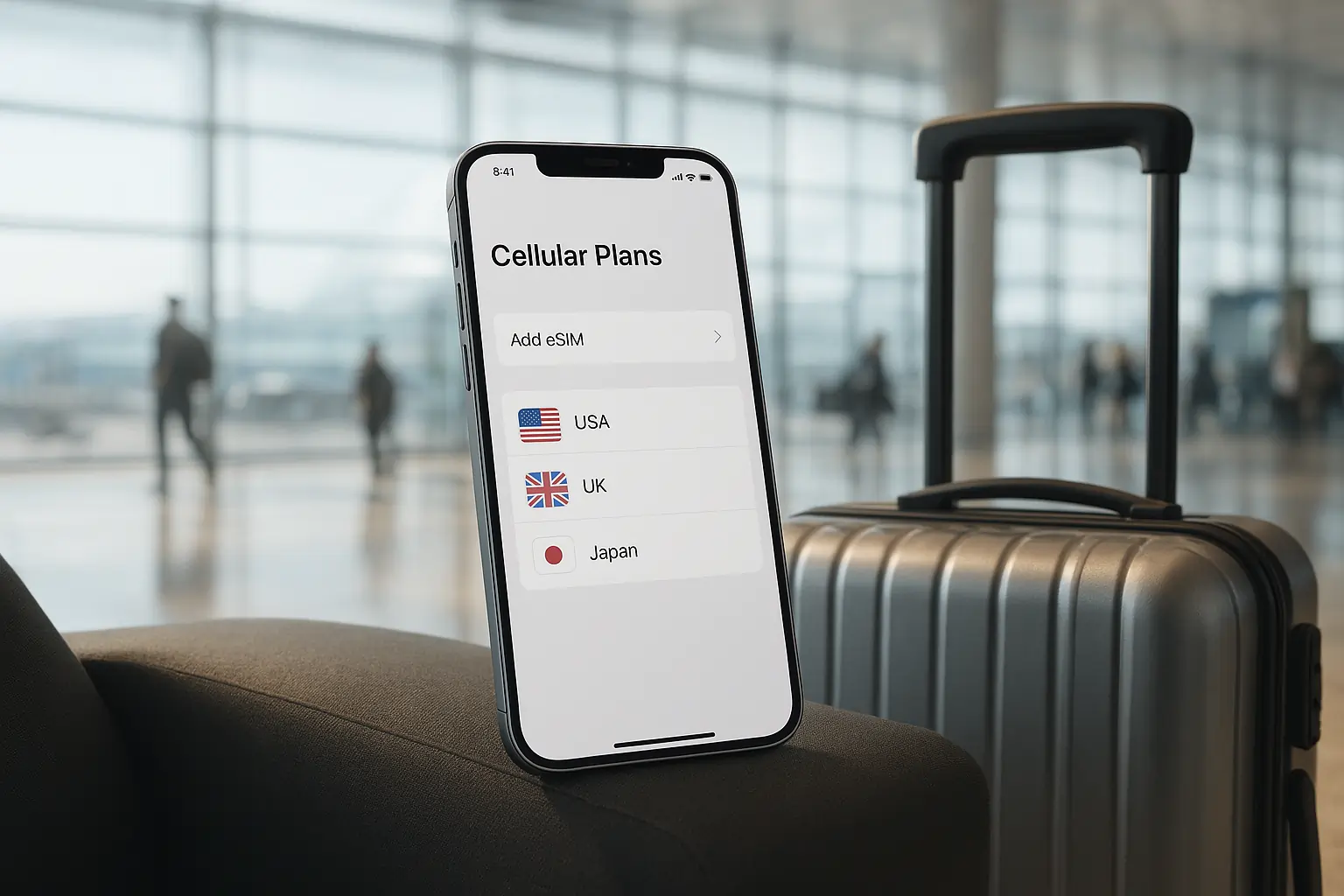
- A QR code appears—scan it under Settings > Cellular > Add Cellular Plan.
- Label your plan (“Travel Plan,” etc.) and select your data preferences.
Pro Tips:
- Ensure you’re on AT&T’s LTE/5G network during activation.
- If traveling later, activate immediately and verify the profile works before departure.
2. T-Mobile eSIM Setup—Fast and Flexible
T-Mobile streamlines setup within the T-Mobile app or the web portal:
- Log in and navigate to Manage Device.
- Select the device and click Activate eSIM.
- You receive a QR code or download your profile directly.
- Go to Settings > Mobile Data > Add Data Plan, scan or import.
- Name your plan and choose whether it’s primary or secondary for data, calls, and messages.
Pro Tips:
- Make sure VoLTE and 5G are enabled for smoother activation.
- Label your travel plan clearly if you use multiple lines.
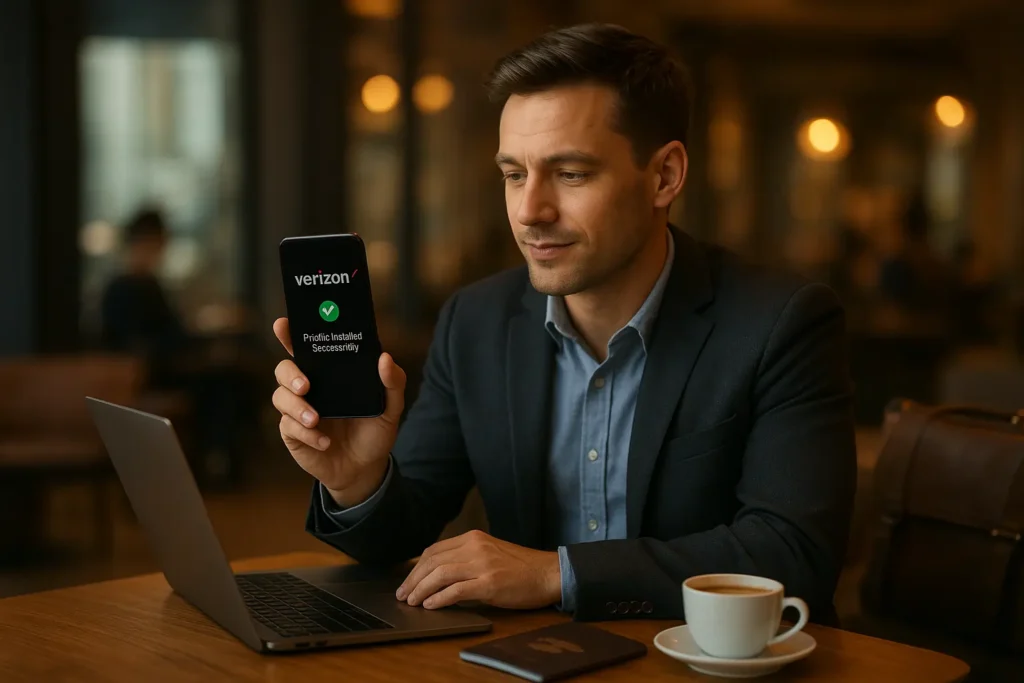
3. Verizon eSIM Setup—Secure and Seamless
Verizon offers eSIM setup through both their app and customer support:
- Open the My Verizon app, go to Manage Plans.
- Tap Switch to eSIM, then Activate Device with eSIM.
- Get the QR code and install via Settings > Cellular > Add Cellular Plan.
- Assign your line for voice and data needs and check connection after setup.
Pro Tips:
- If you’re setting up abroad, activate while still on U.S. Wi-Fi or LTE.
- Their system often protects your number continuity even after switching.
Common Challenges & How to Overcome Them
| Problem | Fix |
| QR code won’t scan | Clean camera, adjust lighting, or manually enter activation fields |
| “Activation failed” error | Restart device and retry on stable Wi-Fi |
| No data after setup | Enable eSIM line and turn on Data Roaming, if traveling overseas |
| High-cost roaming after travel | Add eSIM as a data-only plan inside your carrier’s controls |
Real-Talk Traveler Scenario
Imagine landing in Paris after long hours of travel. You remember you set up your AT&T eSIM at home—great! But your phone reads “No Service.” The fix? Flip on Data Roaming, check for carrier updates under settings, or re-name your eSIM profile to re-prioritize coverage. If that fails, log back into the AT&T app and re-run activation—usually fixes it within minutes.
Final Thoughts
DIY eSIM setup for U.S. travelers empowers you to step off the plane with instant connectivity—free from hassle and hidden fees. Whether you’re using AT&T, T-Mobile, or Verizon, each offers streamlined, traveler-friendly switchovers. Take a few minutes to do it right before departure, and enjoy reliable roaming wherever your adventures take you.
FAQs
1. What exactly is “DIY eSIM Setup for US Travellers”?
It’s the self-activation of an eSIM plan via your own phone using carrier apps—no store visit required—perfect for trips.
2. Can I set up an eSIM myself if my phone is locked?
No—your device must be unlocked for activation. Otherwise, the eSIM profile may not function correctly.
3. Is activating on Wi-Fi necessary?
Yes. A stable Wi-Fi connection is highly recommended during setup—even though activation can occur over LTE, Wi-Fi speeds improve reliability.
4. Will my U.S. number stay the same after switching to an eSIM?
Yes—voices, messages, and number remain consistent when using the carrier’s standard setup process.
5. Can I use the eSIM only for data and keep my physical SIM active for calls?
Absolutely. Just set your eSIM for data only and your physical SIM for voice/text in your mobile settings.





Leave a Reply