
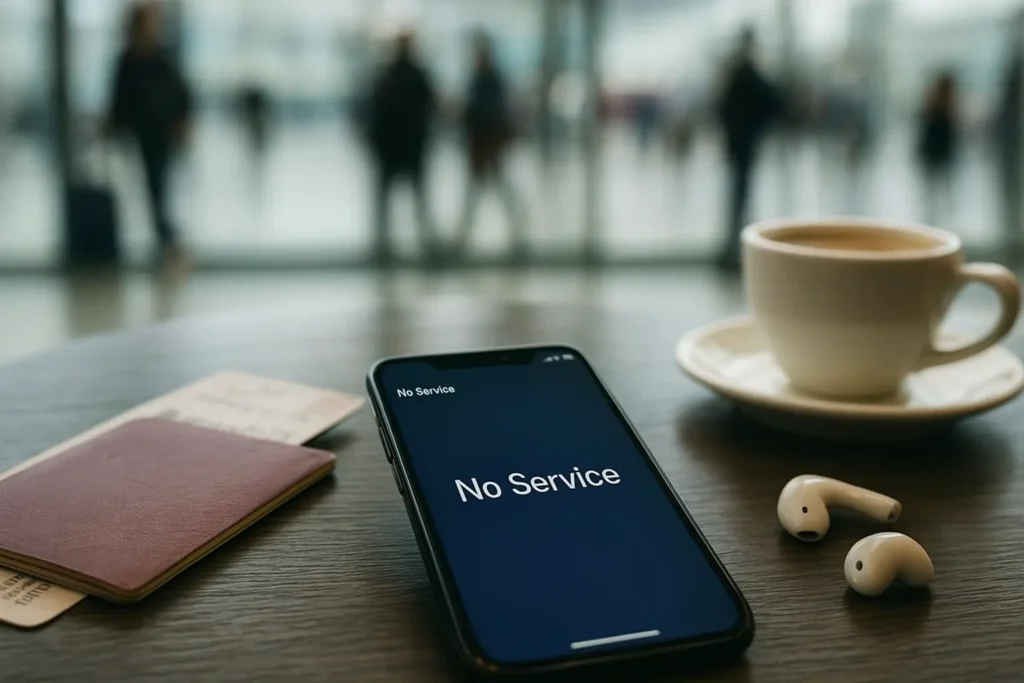
eSIM technology is rapidly changing the way travelers and digital nomads stay connected. Instead of juggling multiple physical SIM cards, eSIMs allow you to switch between networks digitally. However, just like traditional SIM cards, eSIMs aren’t immune to problems. Two of the most common issues travelers face are “no service on eSIM” and “eSIM activation failed.”
If you’ve landed here while struggling with either, don’t worry—these are solvable problems. In this guide, we’ll walk you through the common causes, troubleshooting steps, and prevention tips to ensure you stay connected wherever you are.
Why Do eSIMs Show “No Service” or Fail to Activate?
Before jumping into solutions, it helps to understand why these errors occur. Common reasons include:
- Network Coverage Gaps – Your eSIM may be connected, but the chosen carrier doesn’t have strong coverage in your area.
- Wrong Plan Selection – Some eSIMs are data-only, while others support calls and SMS. Using the wrong plan may cause service issues.
- Incomplete Activation – A poor Wi-Fi connection or interruption during the setup can lead to eSIM activation failed errors.
- Device Compatibility – Not all smartphones support eSIM or specific carrier profiles.
- Outdated Software – Running an old iOS or Android version can cause compatibility problems.
- Incorrect Settings – APN, roaming, or data settings may need manual input depending on the carrier.
How to Fix “No Service on eSIM”
If your eSIM installs correctly but shows “No Service,” try these steps:
1. Check Network Coverage
- Open your carrier’s coverage map. If you’re in a rural area or underground, service may be limited.
- Try moving outdoors or closer to a city area to regain signal.
2. Enable Roaming
- Many travel eSIMs require roaming to be turned on, even in the destination country.
- Go to Settings → Mobile Data → eSIM → Data Roaming and toggle it on.
3. Restart Your Device
- A quick restart often forces the phone to reconnect to available towers.
- Turn Airplane Mode on and off to refresh the connection.
4. Manually Select a Network
- Go to Network Selection in your mobile settings.
- Instead of “Automatic,” manually choose the supported carrier listed in your eSIM provider’s guide.
5. Update Carrier Settings
- On iPhone: Go to Settings → General → About. If an update is available, you’ll see a prompt.
- On Android: Look under System Updates for carrier configuration updates.
How to Fix “eSIM Activation Failed”
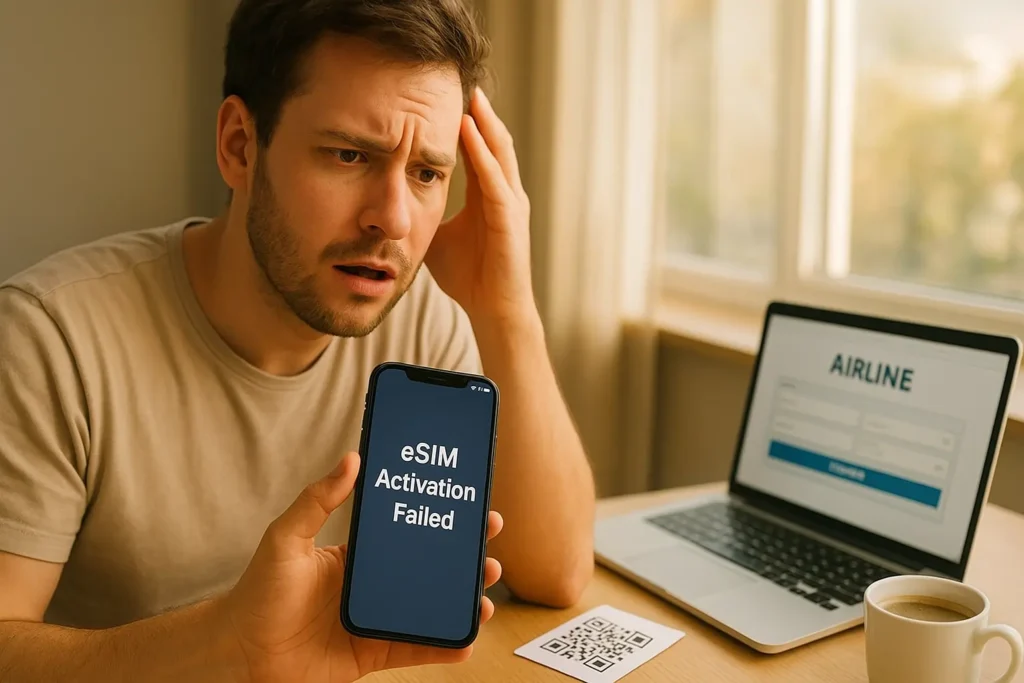
Sometimes, the error pops up right during setup. If your eSIM activation failed, here’s how to fix it:
1. Check Wi-Fi Connection
- eSIMs require a strong internet connection to download the carrier profile.
- Use stable Wi-Fi instead of mobile data during installation. For more guidance, you can also refer to the GSMA eSIM resources for global standards and troubleshooting support.
2. Re-Scan the QR Code
- If you scanned the QR code incorrectly or skipped a step, delete the failed profile and try again.
- Make sure your camera is focused, and the QR code isn’t blurry.
3. Manually Enter Details
- Some carriers provide manual activation codes (SM-DP+ Address and Activation Code).
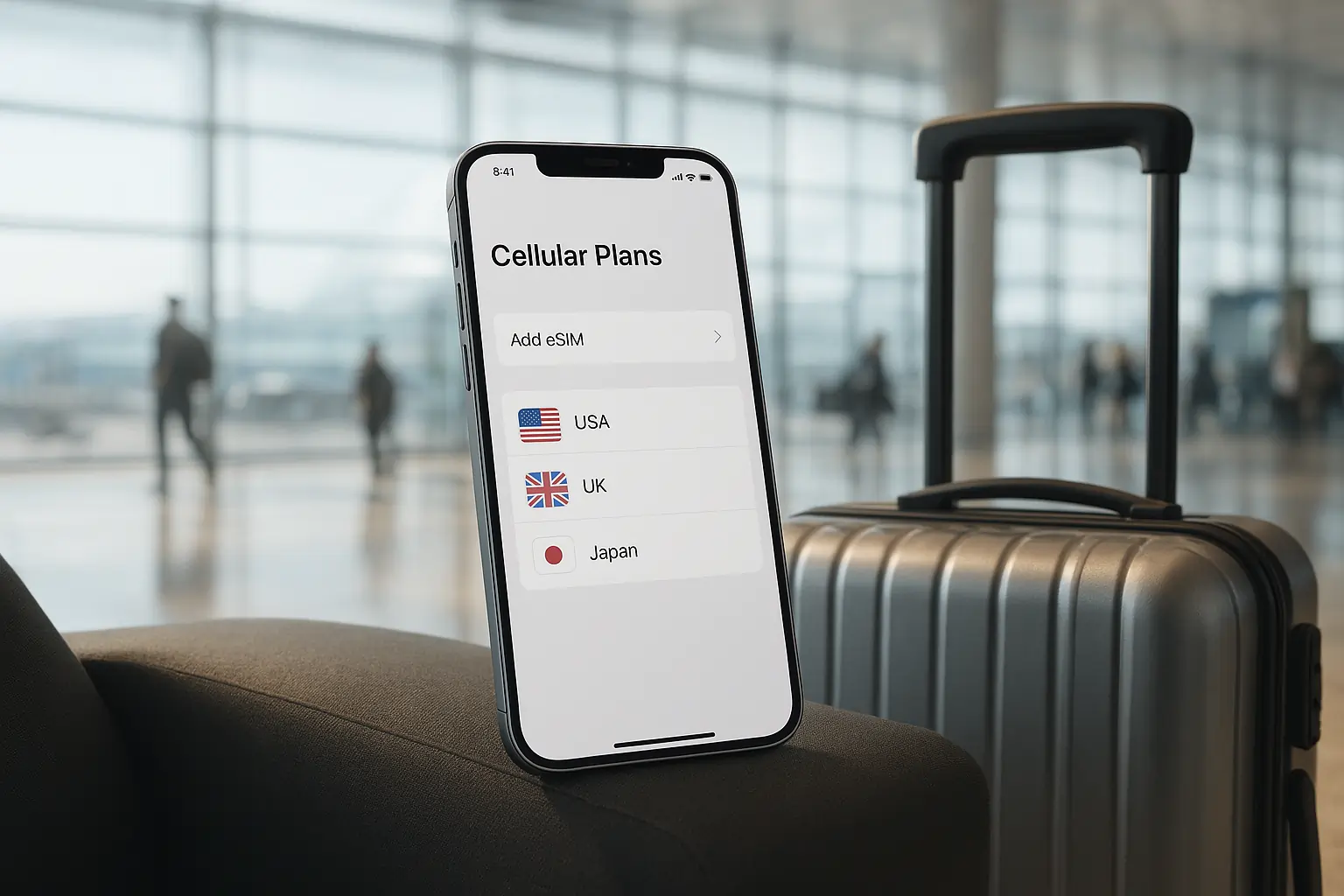
- Instead of scanning, enter these details under “Add eSIM Manually.”
4. Check Device Compatibility
- Verify that your smartphone is carrier-unlocked and supports eSIM for your region.
- Some cheaper models, older phones, or dual-SIM variants don’t fully support eSIM.
5. Update Your OS
- Update iOS or Android before installing. Outdated versions often lead to failed activations.
6. Contact Your eSIM Provider
- If none of the above work, your activation code might have expired or already been used.
- Contact support to request a fresh QR code.
Preventing Future eSIM Issues
While “no service on eSIM” and “eSIM activation failed” are common, you can reduce the chances of running into them:
- Install Before You Travel – Activate your eSIM at home on reliable Wi-Fi before your trip.
- Keep a Backup SIM – Carry your physical SIM or a spare eSIM plan in case of emergencies.
- Save Customer Support Info – Most eSIM providers offer 24/7 chat or email help—have their contact handy.
- Use Trusted Providers – Cheap or unknown providers may have unreliable service. Stick to recommended travel eSIM brands.
Final Thoughts
eSIMs are an excellent travel companion, but like any technology, they come with minor hiccups. Issues like “no service on eSIM” and “eSIM activation failed” can usually be fixed with simple steps like enabling roaming, updating software, or re-installing the eSIM profile.
For travelers, the key is preparation—install your eSIM before you leave, keep a backup connection, and choose a reliable provider. That way, you can stay connected without unnecessary stress during your adventures. If you’re planning your next trip, consider exploring affordable and reliable options on our eSIM Deals. With the right eSIM plan, you can stay connected seamlessly without worrying about setup hassles.
FAQs on eSIM Setup Problems
1. Why does my phone show “No Service” after installing an eSIM?
This usually happens if your eSIM isn’t activated or if network settings weren’t updated. Try restarting your phone, enabling “Aeroplane Mode” for a few seconds, or checking if the correct carrier profile is selected in mobile network settings.
2. How can I fix “eSIM Activation Failed”?
First, ensure you have a stable Wi-Fi connection while activating. If it still fails, delete the eSIM profile, restart your device, and scan the QR code again. Sometimes, contacting your carrier to reissue the QR code solves the issue.
3. Will resetting network settings fix “No Service” on eSIM?
Yes, in many cases. Resetting clears old network data and forces your phone to reconnect to the carrier’s settings. Just note that you’ll need to re-enter saved Wi-Fi passwords after the reset.
4. What if my eSIM shows “Activation Failed” even after multiple tries?
This could mean your phone model isn’t fully compatible or the eSIM plan wasn’t provisioned correctly. Double-check compatibility on your carrier’s website and ask support to push a fresh activation profile.
5. Can switching between physical SIM and eSIM cause “No Service”?
Yes, sometimes switching can confuse network settings. Make sure the eSIM is set as the active line in settings and disable the physical SIM if not needed.








Leave a Reply